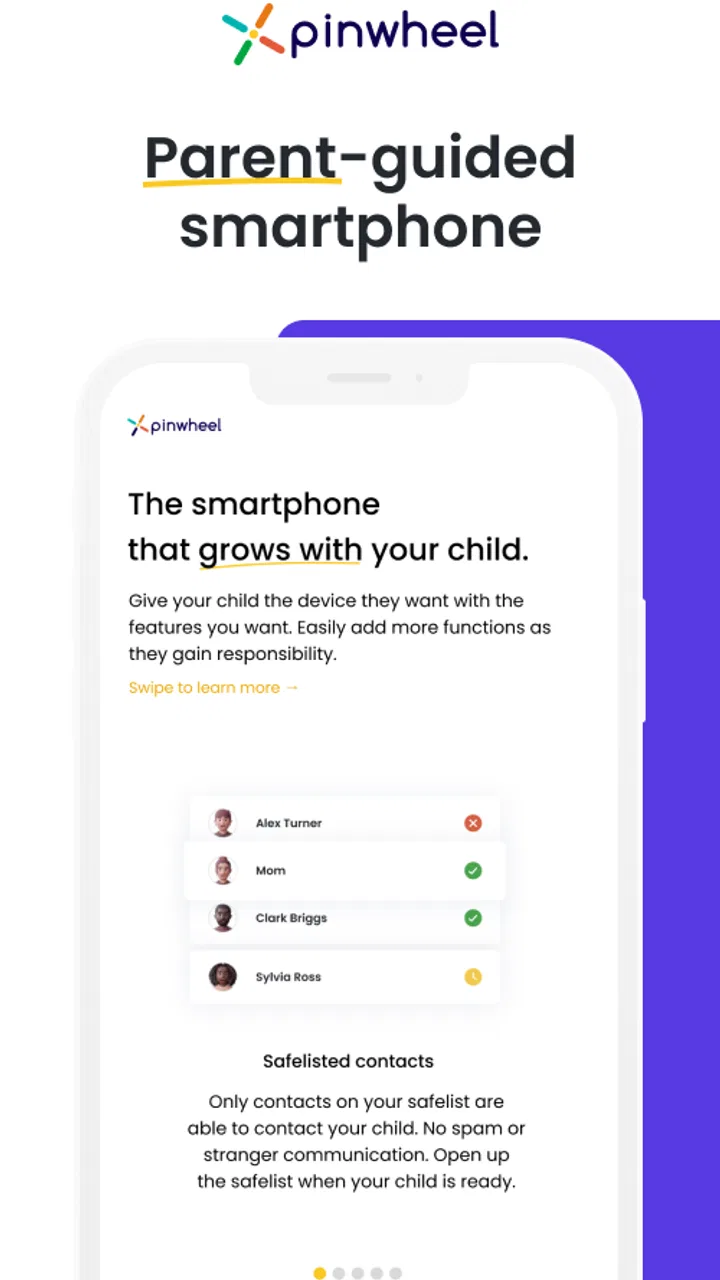
Pinwheel Caregiver
- 3.5
- Rating
- 10.00K
- Installs
- Free
- Price

 Analysis by App-foxy
Pinwheel Caregiver is the kind of parenting app that makes sense only when you are already using a Pinwheel smartphone for your child. I approached it less like a general family tracker and more like a control point for the child’s phone: useful when a parent needs to manage the device, but not especially meaningful as a standalone download. In my experience, that distinction explains both its appeal and much of the frustration people may feel during setup.
The app is developed by Pinwheel.com and is available free of charge for Everyone. It belongs to the parenting category, runs on Android 7.0 or later, and the current version is 1.6.2. Its average rating is 3.2 from over two hundred ratings, while the app has passed ten thousand installs. Those figures suggest a focused product with a smaller audience rather than a universal family-management tool, so I would judge it by how well it supports the Pinwheel phone experience instead of comparing it directly with every parental-control app.
Where the experience usually becomes difficult
The first point I would clarify to any parent is that this is not an ordinary messaging, location, or screen-time application that can be installed on any child’s phone and immediately become useful. It is a caregiver portal for managing a child’s Pinwheel smartphone. If you open it expecting a complete family dashboard before the child’s device and caregiver relationship are ready, the app can feel incomplete or confusing even when nothing is broken.
You May Also Like

 Pandora - Music & Podcasts
Pandora’s Music Is Easy to Start, but Harder to Recover
Pandora’s strength is its low-effort path from a seed to a station. Its weak spot is how much confidence it asks you to place in connection, setup, and quiet recovery.

 8 Ball Pool
 Is Built on Rivalries, Rematches, and Routine
A close look at the rivalries, rematches, shared routines, and unanswered safety questions that turn a quick pool match into a persistent mobile community.

 Samsung Music
’s Quiet Strength Is Playing What You Already Own
Its reach comes less from spectacle than from dependable access to a personal library. That simplicity is both the app’s strongest retention engine and its ceiling.

 AccuWeather: Weather Radar
AccuWeather Review: A Quick, Clear Forecast for Everyday Decisions
For everyday plans, the best forecast is the one you can understand quickly. AccuWeather makes rain timing, radar, and local conditions easy to act on, with a few trade-offs.

 Hill Climb Racing
Why Hill Climb Racing Still Turns Crashes Into One More Run
A tiny car, a bumpy hill and one more upgrade: Hill Climb Racing keeps resurfacing because its simple chaos makes every near-miss feel personal.

 AliExpress - Shopping App
AliExpress Makes Global Shopping Feel Personal, but Shoppers Bear the Risk
AliExpress turns a global marketplace into a pocket-sized discovery engine. Its reach is useful, its shopping loop compelling, and its trade-offs easy to miss.
More From Our News Desk
View All News


That dependency creates a practical chain. The caregiver needs the correct account, the child’s Pinwheel phone needs to be associated with that account, and both sides need to be in a state where changes can be communicated. When one link is wrong, the visible symptom may simply look like an app problem: an empty screen, an unavailable device, a setting that does not appear to change, or a control that seems to have no effect.
I found that the most useful mindset is to treat every issue as a question of connection and context before treating it as a software failure. Am I signed into the caregiver account that belongs to this child? Am I looking at the intended device? Is the child’s phone powered on and able to communicate? Did I give a change enough time to reach the phone? This short checklist prevents a surprising amount of unnecessary reinstalling.
Another source of friction is expectation. Parents often want the portal to behave like a live remote control, with every action reflected instantly. A caregiver-management app may instead need the child’s phone to receive and apply changes. If the phone is offline, busy, restarting, or not properly linked, the portal may not be able to complete the task immediately. Repeating the same command several times can make it harder to tell which action actually succeeded.
For that reason, I recommend making one change at a time and observing the result before moving to another setting. This is especially helpful during the first day of use, when you are learning which changes are visible right away and which depend on the child’s phone checking in. It also gives you a clearer record of what happened if you later need help from Pinwheel.com.
The key practical lesson is simple: confirm the account and the child’s phone connection before assuming the portal itself is malfunctioning. That advice may sound basic, but it matters more here than it would with a self-contained parenting utility because the app is part of a wider device-management arrangement.
What I would check before changing anything
I would begin with the phone itself. Make sure it is switched on, has enough battery for normal operation, and is in a place where it can communicate normally. If the child has just returned from travel, a basement, a crowded event, or another area with unreliable service, a delayed update may have a simple explanation. The portal cannot make a disconnected phone respond.
Next, I would verify the caregiver login rather than relying on an old saved session. A family may have more than one adult account, or a parent may accidentally use a different email address from the one used when the child’s phone was arranged. If the app opens but the expected child or device is missing, account identity is one of the first things worth checking.
I would also close the app normally and reopen it before taking more drastic action. This is a safe first step because it refreshes the current session without changing the child’s configuration. If the phone has only just been connected or a setting has just been changed, I would allow a little time and check again instead of tapping repeatedly.
Finally, I would note the exact action that failed. “The app does not work” is difficult to troubleshoot. “The child’s phone appears, but one change is not reflected after reopening the portal” is much more useful. Keeping that distinction in mind helps separate a display refresh issue from a device communication issue or an account setup issue.
Setup habits that prevent avoidable confusion
During setup, I would keep the caregiver phone and the child’s Pinwheel phone together. This makes it easier to confirm that I am working with the intended device and to notice whether a change reaches the child’s phone. Setting everything up from separate locations adds uncertainty, particularly if the child’s phone is not currently connected.
I would also avoid making a large batch of changes immediately. A parent may be tempted to configure every available option in one session, but that makes it difficult to identify which step caused a problem. A better approach is to complete the basic connection first, verify that the child’s phone is visible, then make a small change and confirm the result. After that, continue in stages.
One useful habit is to record the caregiver account used for the family arrangement in a secure personal note. I do not mean writing down a password in an unsafe place; I mean keeping track of which account is the household’s administrative account. This becomes valuable when another parent installs the app and sees a different state, or when a phone is replaced and the family is unsure which login should be used.
If more than one child or device is involved, I would give each device a clear everyday identity in my own notes. Confusing one child’s phone with another is an easy mistake when the portal presents similar device entries. Before applying a restriction or management change, I would pause and confirm the child and phone I intend to manage.
The Android requirement is also worth checking before installation. The app supports Android 7.0 and later, so an older caregiver phone may be the reason installation or normal operation is unavailable. This is a straightforward compatibility check, but it is often overlooked when the family is focused on the child’s device rather than the parent’s phone.
Recovering from a stalled or unclear workflow
When a change appears stuck, I would use a calm recovery sequence rather than immediately deleting the app. First, I would look at the child’s phone and confirm that it is powered on. Then I would check its connection and wait briefly. After that, I would reopen the caregiver portal and see whether the device state has updated.
If the app still looks wrong, I would sign out and back in only if I am certain I know the correct caregiver credentials. Signing out can help when a session has become stale, but it is not a good idea to do it casually if the account details are uncertain. The goal is to refresh the session without creating a second problem.
Reinstalling should be a later step, not the first response. Removing and reinstalling an app may clear local session information, but it does not automatically repair an incorrectly associated child’s phone or a problem with the phone’s connection. If the underlying issue is account selection or device availability, a fresh installation simply brings you back to the same situation.
I would also avoid changing several things while trying to recover. If I alter a setting, restart the app, change another setting, and then restart the child’s phone, I lose the ability to identify the successful step. A controlled sequence is slower but much more informative. It is particularly useful when explaining the problem to another caregiver or to support.
There is a practical difference between an app that cannot open and an app that opens but cannot complete an action. If it will not launch, I would focus first on the caregiver phone, Android compatibility, available storage, and whether a normal restart helps. If it launches but the child’s phone does not respond, I would focus on account association, the child’s phone state, and connectivity.
That distinction is one of the non-obvious strengths of approaching this app methodically: the portal’s visible behavior can tell you where to look next. It is not a diagnostic tool in the formal sense, but separating launch problems from synchronization problems keeps troubleshooting grounded instead of random.
When the portal is not the real cause
Parents can easily blame the caregiver app when the actual difficulty is on the child’s phone or in the surrounding setup. A phone with no usable connection cannot receive a remote management change. A phone that is powered down cannot report its current state. An account that is not the one connected to the child’s device cannot show the expected controls. None of these situations is necessarily evidence that the app itself is defective.
The same applies to delays. If the portal shows an older state, I would compare it with what is physically happening on the child’s phone before repeating an action. Sometimes the phone is still processing the change; sometimes the portal needs to be reopened; sometimes the phone has not been able to communicate. Looking at both devices is more reliable than judging from the caregiver screen alone.
This is also where the app differs from many general parental-control alternatives. A broad family-safety app may be designed to work across a variety of phones and may emphasize a single dashboard for several brands. Pinwheel Caregiver is more specialized. That specialization can make it a better fit for a household committed to a Pinwheel smartphone, because the management experience is tied to that ecosystem. It can be a poor fit for a family that wants one tool to control unrelated Android and iOS devices.
I would skip this app if I did not use a Pinwheel phone for my child, if I wanted a general-purpose family locator, or if I expected a standalone screen-time product with broad device coverage. Installing it simply to explore parenting controls would not offer much value. Its purpose is narrower, and that is not a flaw as long as the household’s needs match it.
I would also be cautious about choosing it as the only tool for a family that needs highly immediate, always-visible status information. A caregiver portal is useful for management, but parents should not assume that every device state will be reflected at the exact moment an event occurs. For urgent safety situations, I would rely on direct communication and ordinary emergency procedures rather than treating a management portal as a real-time emergency channel.
A realistic family routine
Imagine a parent preparing a Pinwheel phone for a child before school. The parent opens the caregiver portal at home, confirms the correct caregiver account, checks that the child’s phone is powered on, and makes one management change. Instead of immediately adding several more changes, the parent checks the child’s phone and then returns to the portal to confirm the state. This small pause makes it clear whether the workflow is functioning.
Later, the child comes home and reports that the phone is not behaving as expected. The parent should not begin by reinstalling the portal. I would first ask whether the phone has battery and connection, look at the device directly, and then reopen the caregiver app. If the device is visible but the state is old, I would wait and refresh. If the device is absent altogether, I would investigate the caregiver account and association before trying anything destructive.
This routine also shows why the app suits an involved caregiver better than someone who wants a completely hands-off solution. It rewards a parent who is willing to understand the relationship between the portal and the child’s phone. The benefit is a more deliberate management process; the cost is that the parent has to think about the whole setup rather than only the app screen.
For households with two caregivers, I would agree on one person to perform initial setup and document the account used. The second caregiver can then sign in with the intended credentials and confirm that the same child’s phone is visible. This avoids the common household problem where both adults believe they completed setup, but each is looking at a different account state.
What I like about the focused design
My main positive impression is that the app has a clear job. It is not trying to be a social network, a general family organizer, or an overloaded dashboard. For a parent already invested in a Pinwheel smartphone, a dedicated caregiver portal is easier to understand than a collection of unrelated tools. The app’s value comes from giving the caregiver a place to manage the child’s device rather than asking the child to handle every change.
The focused design also makes it easier to create a repeatable family process. I can imagine using the portal at predictable moments: during initial setup, when reviewing the child’s phone arrangement, or when a device change needs caregiver attention. That is more useful than an app that offers dozens of unrelated features but does not fit naturally into the household routine.
Its free price removes one barrier for families who are already using the associated phone. The Everyone content rating also makes the app appropriate for a broad audience of caregivers. Those facts do not guarantee a smooth experience, but they make it straightforward to try when the Pinwheel device is already part of the family’s plan.
Where I would keep my expectations realistic
The rating of 3.2 indicates that the experience is not universally smooth, and I think the likely pain point is less the idea of caregiver management than the dependency on correct setup and communication between devices. A parent who expects instant, self-explanatory behavior may find the workflow frustrating. The app asks for more attention to account identity, device status, and timing than a simple standalone utility.
The smaller install base also reflects its specialized purpose. This is not necessarily a weakness, but it means there is less reason to choose it unless the Pinwheel ecosystem is already relevant to you. A general parental-control product may be more practical for families managing a mixture of phones, tablets, and operating systems. The better choice depends on whether consistency with Pinwheel matters more than broad compatibility.
I would also avoid judging the app solely by whether it replaces every parenting tool. It is better understood as one part of a child-phone arrangement. If you need a general family calendar, a broad location service, or a universal device-management system, you may need another solution. That does not make this portal unsuccessful; it simply defines the boundary of what I would ask it to do.
My practical verdict
After considering the setup and recovery workflow, I see Pinwheel Caregiver as a sensible companion for parents who have chosen a Pinwheel smartphone and want a dedicated way to manage it. I would recommend it to caregivers who are comfortable checking the child’s phone, confirming the right account, and allowing time for device changes to synchronize. The focused purpose is its biggest advantage.
I would not recommend downloading it as a general parenting app without the matching Pinwheel phone. Nor would I choose it for a family that needs one dashboard across unrelated devices or expects every action to behave like an instant remote command. In those situations, a broader alternative is likely to be less restrictive and easier to organize.
My best advice is to treat the first setup as a small technical routine: use the correct caregiver account, keep both phones available, verify the child’s device before making changes, and test one action at a time. If something stalls, separate an app-launch problem from a device-connection problem before reinstalling anything. Those habits do more to improve the experience than repeatedly tapping the same control.
With that realistic expectation, the app can be useful and appropriately simple. It is not a complete answer to every parenting concern, but it provides a focused management doorway for the Pinwheel phone. For the right household, that narrow role is enough to make it worthwhile; for everyone else, the same narrowness is the clearest reason to look elsewhere.
FAQs for Pinwheel Caregiver
01What is Pinwheel Caregiver and how does it work?
Pinwheel Caregiver is a parental control app designed to help manage and monitor your child's phone usage. It allows you to set screen time limits, approve apps, and track location. By syncing with your child's Pinwheel phone, you gain the ability to customize their digital experience and ensure a safe and healthy balance between technology and life.
02Is Pinwheel Caregiver compatible with all devices?
Pinwheel Caregiver is designed to work specifically with Pinwheel phones, offering seamless integration. While the caregiver app can be installed on both Android and iOS devices, its functionality is optimized for use with Pinwheel devices, providing parents with comprehensive control and monitoring features tailored to these phones.
03How does Pinwheel Caregiver ensure my child's privacy?
Pinwheel Caregiver prioritizes your child's privacy by utilizing secure data protocols. It only collects essential information necessary for its parental control features. The app respects user privacy, ensuring that location and usage data are stored securely and accessed only by authorized users, providing peace of mind for parents.
04What features does Pinwheel Caregiver offer for managing screen time?
Pinwheel Caregiver provides robust screen time management features. Parents can set daily screen time limits, create schedules for device usage, and pause access during certain times, such as bedtime or homework hours. These tools help establish healthy digital habits by encouraging children to engage in offline activities.
05Can I monitor all app activities on my child's phone with Pinwheel Caregiver?
Yes, Pinwheel Caregiver allows parents to monitor app activity on their child's phone. You can approve or block apps, view usage statistics, and receive notifications about new app installations. This transparency ensures that you stay informed about your child's digital interactions and can intervene when necessary.
Pros
- Simple interface for easy navigation.
- Real-time tracking for peace of mind.
- Customizable alerts and notifications.
- Secure messaging with end-to-end encryption.
- Battery-efficient to preserve device life.
Cons
- Limited features in the free version.
- Occasional sync delays with devices.
- Requires stable internet connection.
- No offline mode available.
- Some features need a subscription.

Pinwheel Caregiver
Gallery